CLOUD
15-Sep-201914-Jan-2024
Disaster Recovery Replication
1.Description of the Technology
Replication is a process of continuous creation of an identical standby copy (called replica) of the primary virtual server in another data center located at a safe distance of at least 100 km. The replication can be activated in one click, whereupon you do not do any activities, in the background the system automatically runs all the complex operations. The replication does not affect the virtual server performance nor it slows down the connection, as it uses independent dedicated resources.The replica and the primary server are kept in sync by constant data transfer between them. The transfer is carried over geo redundant ultra high speed lines (Nx100Gbps), to ensure creation of replica in real time, even when the primary server undergoes intensive writes on super fast NVMe disks and even when one of the redundant lines is down.In the case of an incident in the primary data center, the replica can be started and continue to run from the disaster recovery data center, without the need of preparing new servers and related infrastructure, as well as restoring from backup copies (if you made a backup copy at all).Please note that replication is not a substitute for backup. If there is an incident at the primary data center and the current state of the virtual server is "faulty", as in the case where the operating system is already running with errors or certain applications are misconfigured, the replica will contain only the last "faulty" condition of the virtual server. For such cases you can protect the data by making snapshots or activate the Automatic Backups feature, which will enable you to restore the virtual server back to an earlier "good" version.2.Activate / Deactivate
Sign into the My Interspace control panel, open the service related to the server, then open the Disaster Recovery Replication tab.Toggle to Yes the Activate replication option field and click save. The replication starts immediately.Toggle to No the Activate replication option field and click save, to terminate the replication.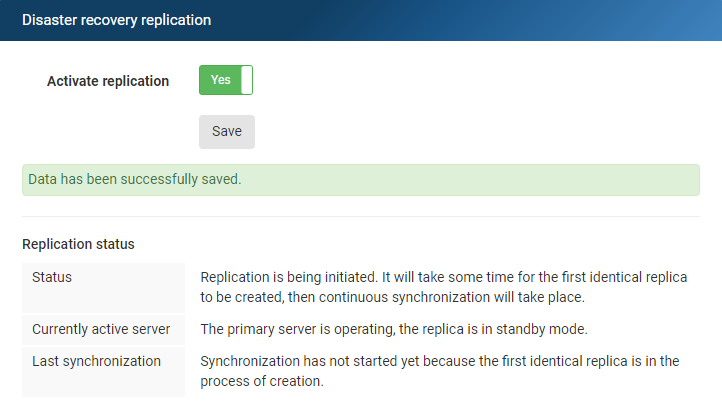
3.Monitor
Sign into the My Interspace control panel, open the service related to the server, then open the Disaster Recovery Replication tab.Here you can view relevant information such as current replication status, primary / secondary server, last synchronization.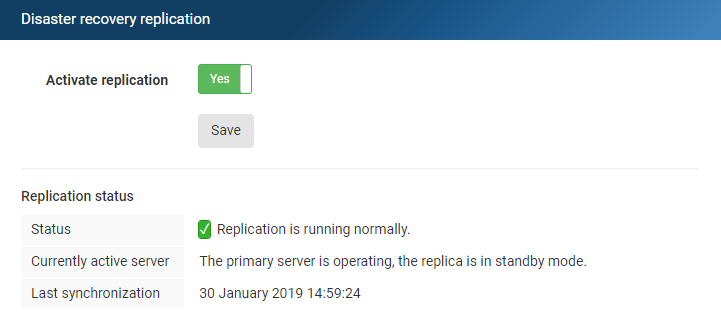
Previous: Snapshots
In this document
Related content
Documentation

Cloud

Communications

Hosting

My Interspace
Tech Articles

Tutorials

Learn
News

Latest news

Latest events
Related products

Elastic Cloud VPS
Elastic Cloud VPS is a virtual machine running on advanced cloud and networking technologies, offering superior advantages over traditional VPS hosting at an exceptional price-to-performance ratio.
Deploy OS and apps in just 1 min. One-click geo-redundant backups, snapshots and disaster recovery. Next-generation AMD EPYC processors, ultra-fast NVMe storage, dedicated connections and free private networking.

Load Balancer
The Load Balancer distributes traffic to multiple servers in your private network, ensuring high performance and redundancy. Designed for high availability and large numbers of connections.
It offers advanced features, including free automatic SSL certificates, automatic failover, session persistence, connection multiplexing, WebSocket, per-IP rate limiting and more.

Cloud NАТ Gateway
Allows your cloud servers with only private IP addresses to get outbound and inbound connections over the Internet, and routes traffic between servers on different private subnets.
Cloud servers reach the Internet through the NAT gateway, and can also receive inbound connections using port forwarding.

Cloud VPN
Cloud VPN creates a secure virtual private network that enables encrypted communication between LAN networks at physical sites, individual computers/smartphones and virtual servers in Interspace Cloud.
It is perfectly suited for banks, software developers, CRM/ERP service providers, healthcare organizations, legal firms, accounting firms, e-commerce businesses and globally dispersed teams.
 English
 Deutsch
 Македонски
 Shqip
Shqip Slovenščina
 Srpski
 Български