CLOUD
15-Jan-201827-Nov-2023
Automatic Backups
1.What are Automatic Backups?
Automatic backups are copies of your virtual server that provide a state that you can revert to in the future. Unlike the Snapshots that are created manually, Automatic Backups are created without the need for manual intervention.Automatic backups are invaluable when you need to restore system functionality or recover data by reverting to a reliable point in the past. Additionally, they play a crucial role in reducing the costs associated with performing manual backups.Interspace Cloud provides advanced functions for Automatic Backups:- Create multiple backup schedules per server with different frequencies, such as daily, specific days of the week, specific months and more.
- Reduce costs by creating separate schedules for backing up system disks (more frequent) and backing up large attached disks (less frequent).
- Control the level of redundancy, with options for Site Redundant Backups or Disaster Recovery Backups where backups are stored more than 100km away.
2.Activating and Deactivating Automatic Backups
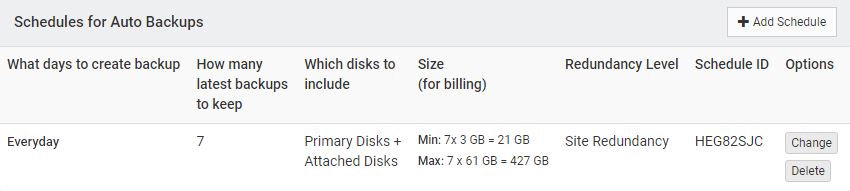
Auto Backups are activated by setting up backup schedules for your server. These schedules will automatically create backups at the times you choose. You can create multiple schedules to control exactly when backups are made and of what type.To create a schedule, click the Add Schedule button and fill out the form. Here's what each option means:- Frequency - How often you want backups to run:
- Everyday - Makes a backup every day
- Selected days in a week - Pick which days of the week to make backups
- Selected days in a month - Pick which days of the month to make backups
- Selected days in selected months - Pick specific days in specific months
- What days to create backup - This field appears when you select weekly or monthly options. Check the boxes for the days you want backups to run.
- Months - This field appears when you select "Selected days in selected months." Check the boxes for which months you want the schedule to be active.
- How many latest backups to keep - How many backup copies to save. When this number is reached, the oldest backup gets deleted to make room for new ones.
- Which disks to include - Choose which disks to back up:
- Primary Disks - Back up only the main disk that is permanently tied to your server.
- Primary Disks + Attached Disks - Back up both the main disk and any additional volumes of block storage you have added.
- Redundancy Level - Where to store your backups:
- Site Redundancy - Server copies are stored in redundant storage within the same data center, in a physically isolated section separate from the cloud server infrastructure.
- Geo Redundancy - Server copies are stored in redundant storage in another data center located over 100km away, providing protection against data center disasters.

3.Managing Automatic Backups
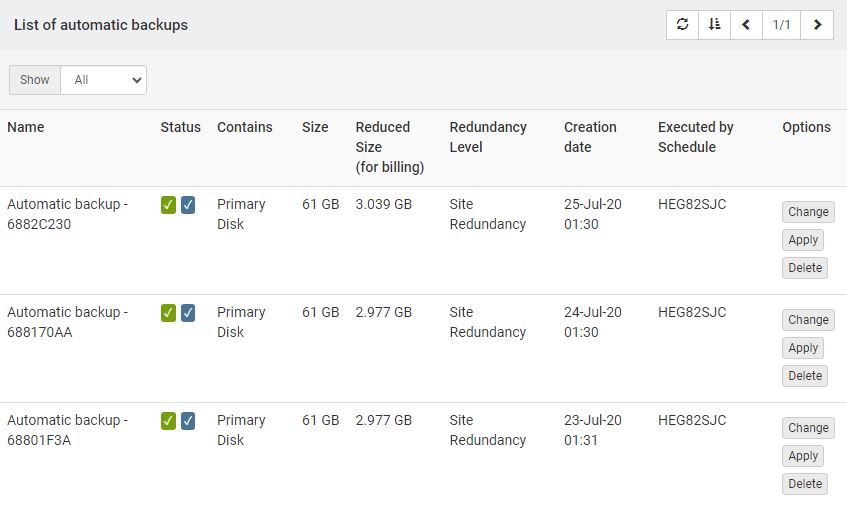
The Backups and Replication tab includes tools for managing existing backup copies. This interface contains a detailed table listing each backup, including creation and deletion dates, storage size, data consistency status and available actions such as Change, Apply, and Delete.- Apply
Revert your server to the state captured in a selected backup, ensuring rapid recovery from data loss or corruption. - Change
Assign custom names to your backups for easier identification, facilitating quicker access and organization. - Delete
Deletes the automatic backup.
4.History of Restored Automatic Backups
Accessible via the History of restored auto backups button within the "Auto backups" tab, this interface provides a comprehensive overview of all past restoration efforts. Upon accessing the history, users are presented with a detailed table that lists each restored backup by its name, alongside the date and time when the restoration was executed. This feature is an essential tool for monitoring and managing the restoration activities of your virtual server's backups.5.Data Consistency
When Interspace Cloud creates automatic backups, it prioritizes creating a copy of the server with data consistency, aiming to capture the system's state at a moment when all data is synchronized and disk operations are completed. This approach ensures a seamless restoration to a specific point in time, without the need for additional data checks or adjustments.It's important to note that some older operating systems, like Linux and Windows versions produced before 2012, may not support the creation of a data-consistent copy. In such instances, Interspace Cloud will create a copy without data consistency. These copies can still be used to restore the server to a specific point in time. However, starting the server after restoration may be similar to booting a system after a forced restart while it was running. This occasionally requires performing data integrity checks, such as verifying disk consistency.Next: Snapshots
Previous: Data Restore and Protection
Related content
Documentation

Cloud

Communications

Hosting

My Interspace
Tech Articles

Tutorials

Learn
News

Latest news

Latest events
Related products

Elastic Cloud VPS
Elastic Cloud VPS is a virtual machine running on advanced cloud and networking technologies, offering superior advantages over traditional VPS hosting at an exceptional price-to-performance ratio.
Deploy OS and apps in just 1 min. One-click geo-redundant backups, snapshots and disaster recovery. Next-generation AMD EPYC processors, ultra-fast NVMe storage, dedicated connections and free private networking.

Load Balancer
The Load Balancer distributes traffic to multiple servers in your private network, ensuring high performance and redundancy. Designed for high availability and large numbers of connections.
It offers advanced features, including free automatic SSL certificates, automatic failover, session persistence, connection multiplexing, WebSocket, per-IP rate limiting and more.

Cloud NАТ Gateway
Allows your cloud servers with only private IP addresses to get outbound and inbound connections over the Internet, and routes traffic between servers on different private subnets.
Cloud servers reach the Internet through the NAT gateway, and can also receive inbound connections using port forwarding.

Cloud VPN
Cloud VPN creates a secure virtual private network that enables encrypted communication between LAN networks at physical sites, individual computers/smartphones and virtual servers in Interspace Cloud.
It is perfectly suited for banks, software developers, CRM/ERP service providers, healthcare organizations, legal firms, accounting firms, e-commerce businesses and globally dispersed teams.
 English
 Deutsch
 Македонски
 Shqip
Shqip Slovenščina
 Srpski
 Български